Set up your account and business hours
Update your profile, manage password and linked sign-in providers, and define the business hours your team operates in.
Use this guide right after sign-up to get your account in shape, and revisit it whenever your team's business hours change.
Open SettingsProfile and sign-in
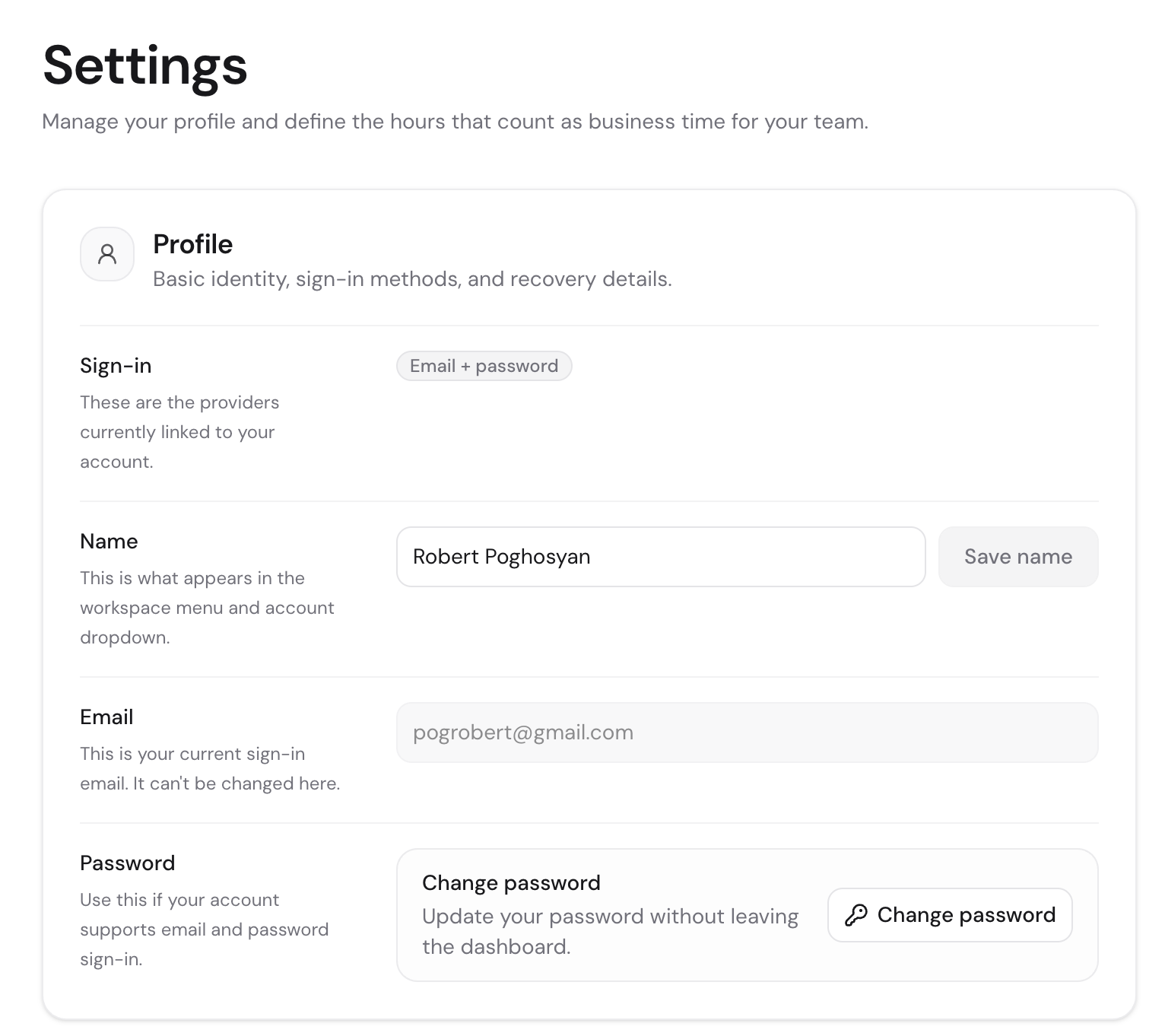
The Profile section shows the providers currently linked to your account, your display name, and your sign-in email.
- Sign-in providers — every method you can use to log in (email + password, Google, GitHub, and so on).
- Name — what shows up in the workspace menu and account dropdown. Edit and click Save name.
- Email — your current sign-in email. It is read-only here; reach out to support if you need to change it.
- Password — the change-password row appears only if email and password is one of your linked providers. OAuth-only accounts manage credentials with their provider.
Define business hours
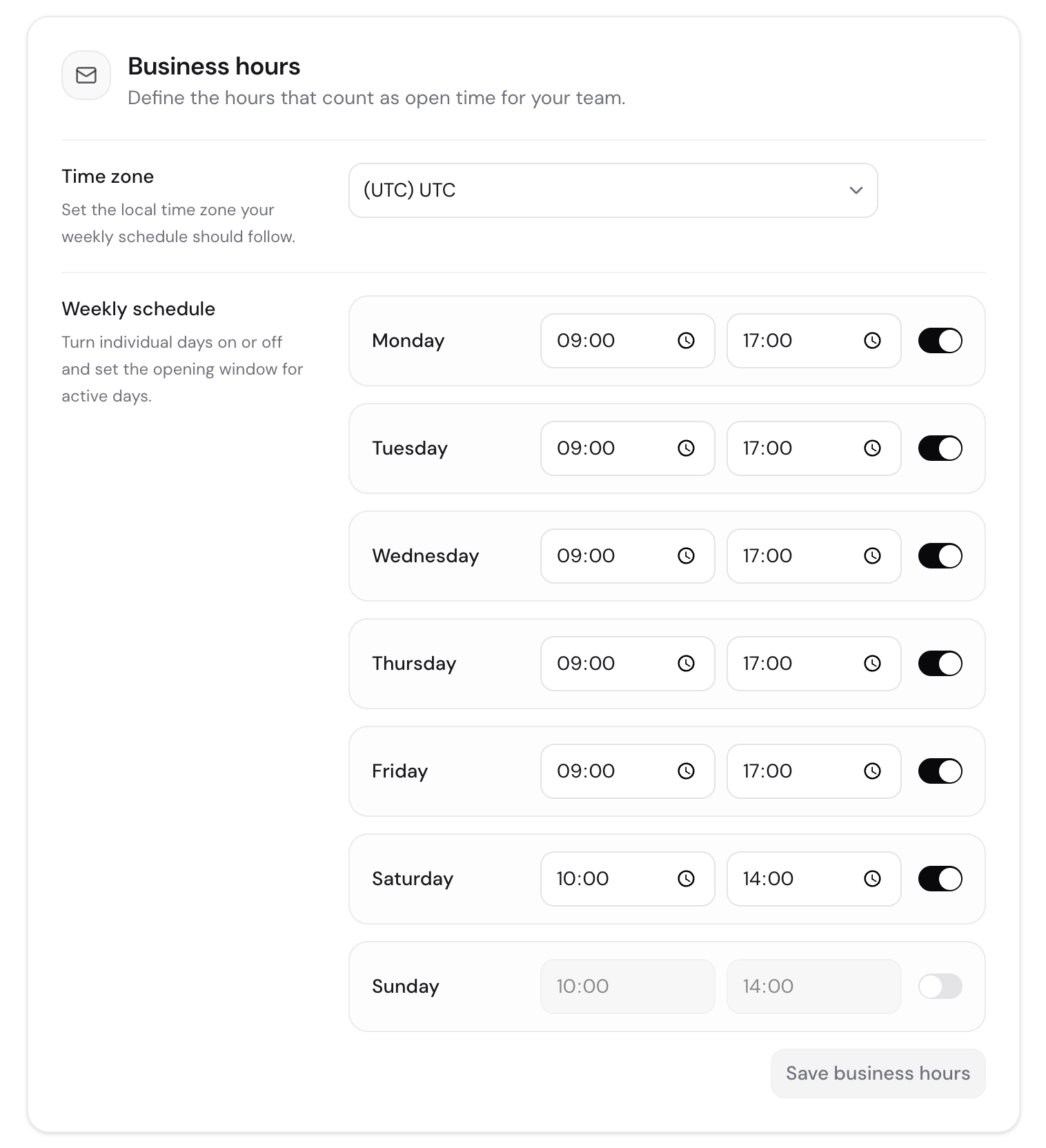
Business hours live in the Notifications section of Settings — they describe when your team is generally available, and they're what notification timing (like the business-hours and digest urgency modes) is based on. They are separate from per-bot calendar availability.
- Pick the time zone the schedule should follow. This is what every weekday window is interpreted in.
- For each day, toggle it on or off and set a single open and close time. Days that are off do not count as business time.
- Click Save business hours when you are done. Saving is blocked if any enabled day has an end time before its start time.
Account hours vs. bot calendar
Use account business hours for general team availability. Use a bot's Calendar settings when the bot itself takes bookings — they have their own per-resource weekly hours and overrides.
Danger zone
The Danger zone holds account-level destructive actions. Today the only action is deleting your account, which removes your bots, settings, and access.
Deletion is permanent
There is no recovery once an account is deleted. Export anything you need first and confirm in the dialog only when you are sure.
Related guides
Continue with the next part of the setup once this step is stable.
Create your first bot
Start from a plain-language description or a template, generate a first draft, and understand what guests can do before signing up.
Set up owner notifications
Get notified the moment a submission arrives — in the dashboard bell and on Telegram with one-tap Accept and Deny — and tune how urgently each bot pings you.
Set up the calendar
Configure timezone, hours, services, and resources so your bot can offer real bookings instead of just collecting requests.