Set up owner notifications
Get notified the moment a submission arrives — in the dashboard bell and on Telegram with one-tap Accept and Deny — and tune how urgently each bot pings you.
Use this guide once a bot is live so new submissions reach you where you actually are, instead of waiting in the dashboard.
Open SettingsThe dashboard bell
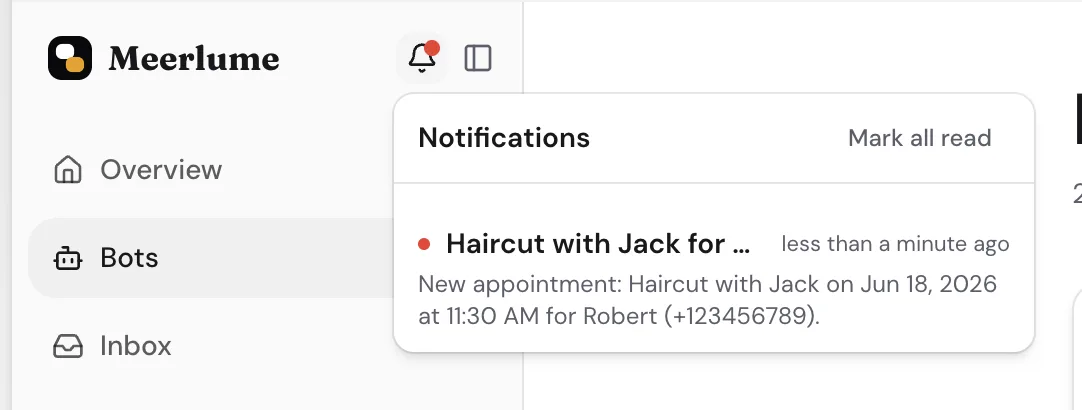
Every new submission lands in the notification bell automatically — there is nothing to enable. The bell shows an unread count across all your bots, and each entry links straight to the submission it is about.
- Open a notification to jump to the submission; it is marked read as you go.
- Use Mark all read to clear the counter after a busy stretch.
Connect Telegram for pings on your phone
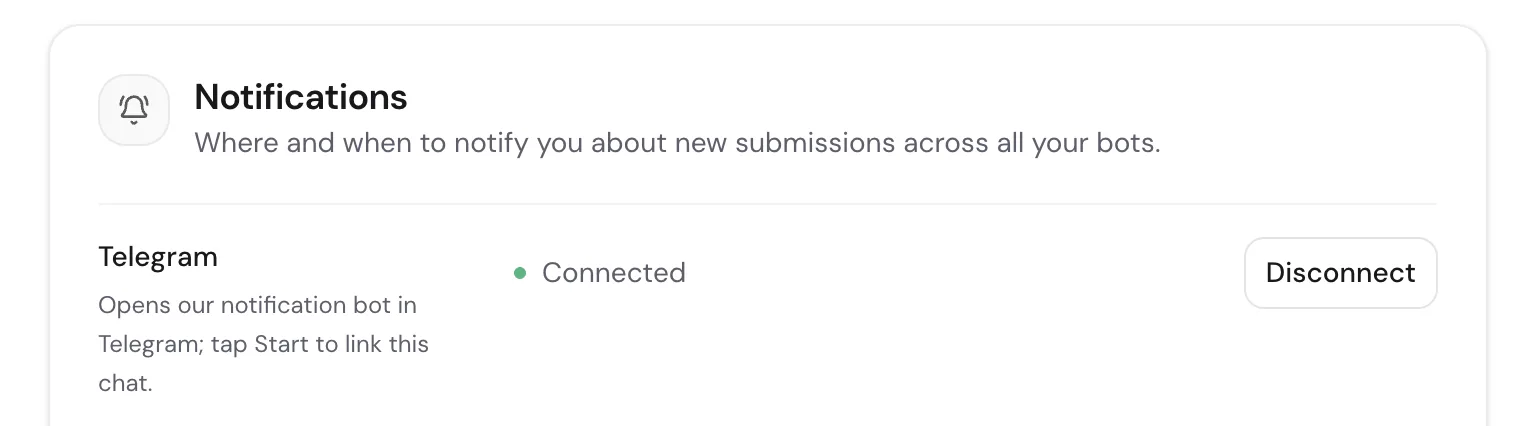
The bell only helps while the dashboard is open. For everything else, connect Telegram in account settings and submissions reach you as chat messages from the Meerlume notification bot.
Open Settings → Notifications
In the Telegram row, click Connect Telegram. This opens the notification bot in Telegram with your link pre-filled.
Tap Start in Telegram
Starting the chat links it to your account. The settings page picks the connection up automatically and shows it as Connected.
Done — it covers every bot
The subscription is account-level: one chat receives submissions from all of your bots. Disconnect any time from the same row.
One ping, not two
If a bot also has its own Telegram notification target, the account-level subscription takes over while it is enabled, so you are never notified twice about the same submission.
Accept or deny without opening the dashboard
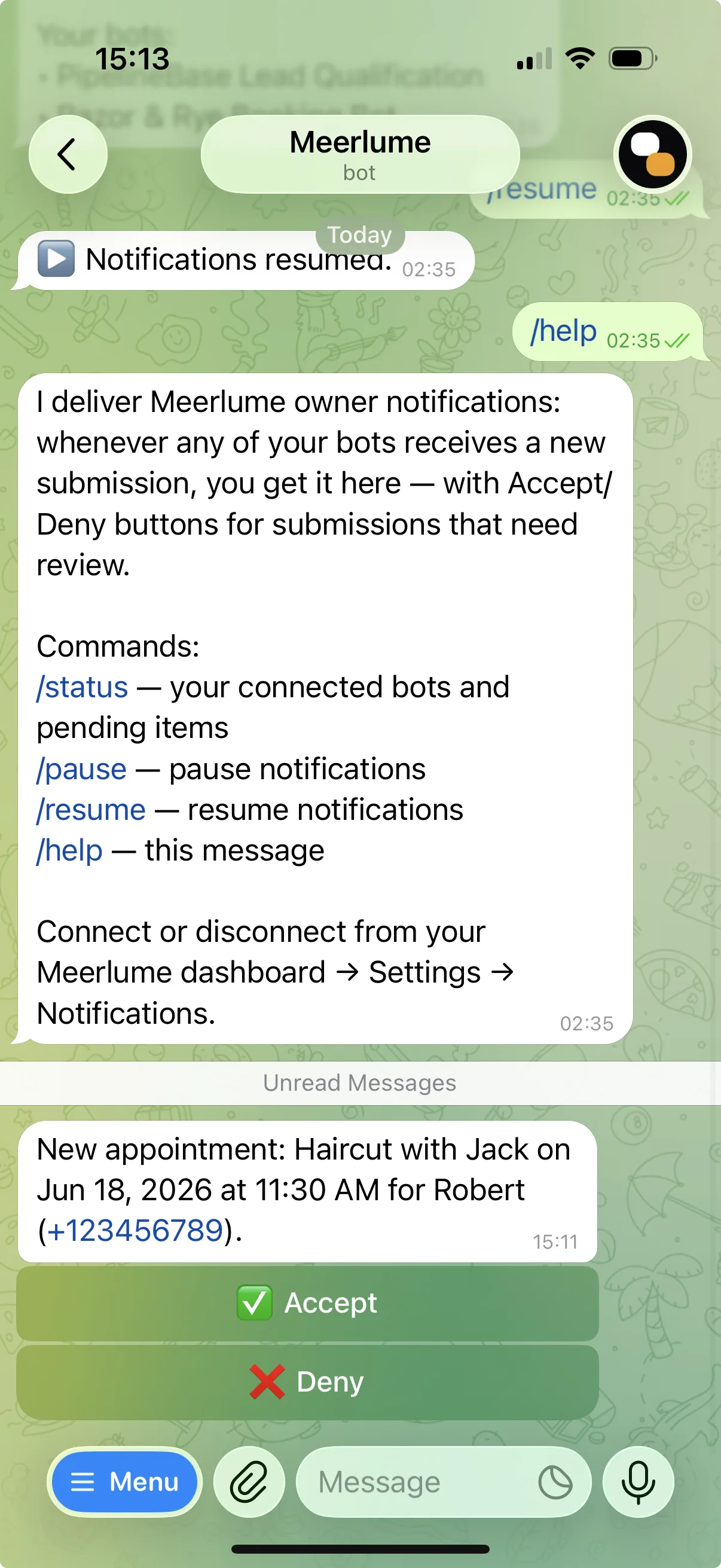
When a new submission arrives in a pending status — a booking or request waiting on your review — the Telegram notification carries inline Accept and Deny buttons. One tap decides it, right from the chat.
- Accept moves the submission to your first active status — for bookings, that confirms the slot.
- Deny moves it to your first cancelled status and releases the slot.
- Either way the customer receives the status update you configured, exactly as if you had decided from the inbox.
Buttons follow your review pipeline
The buttons appear only for bots whose statuses include a pending kind plus an active or cancelled kind to move to — the same rules that drive the review banner in the inbox.
Customize what the notification says
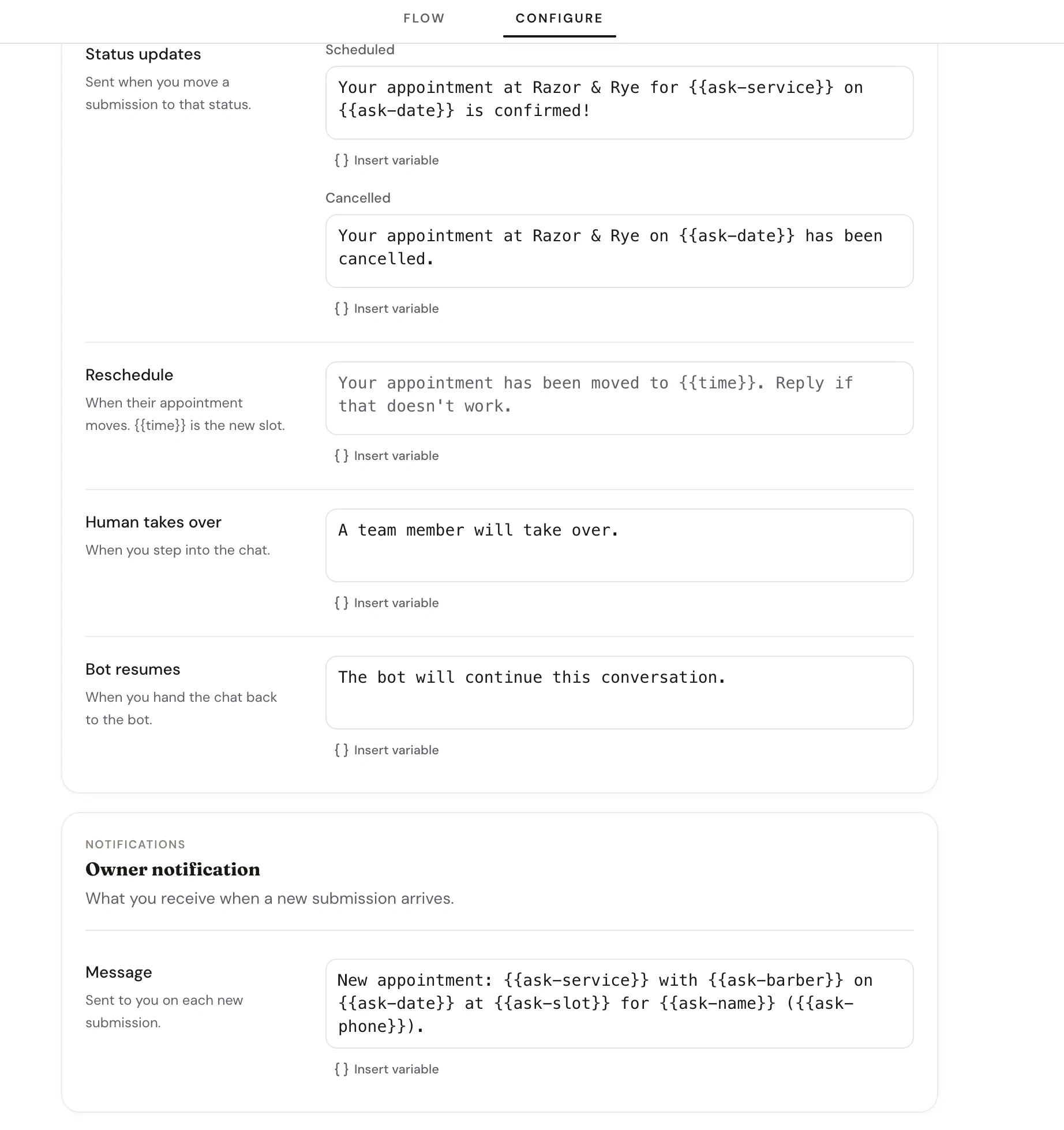
The notification text is per bot, under Owner notification in the builder's Configure tab. Use {{node-id}} to pull the customer's answers into the message — service, party size, preferred time — so the notification tells you everything you need to decide without opening it.
Write it for the lock screen
Put the decision-critical details first. A notification like "Haircut with Jack, Sat 14:00 — Robert" can be accepted from your pocket; "New submission received" cannot.
Tune urgency per bot
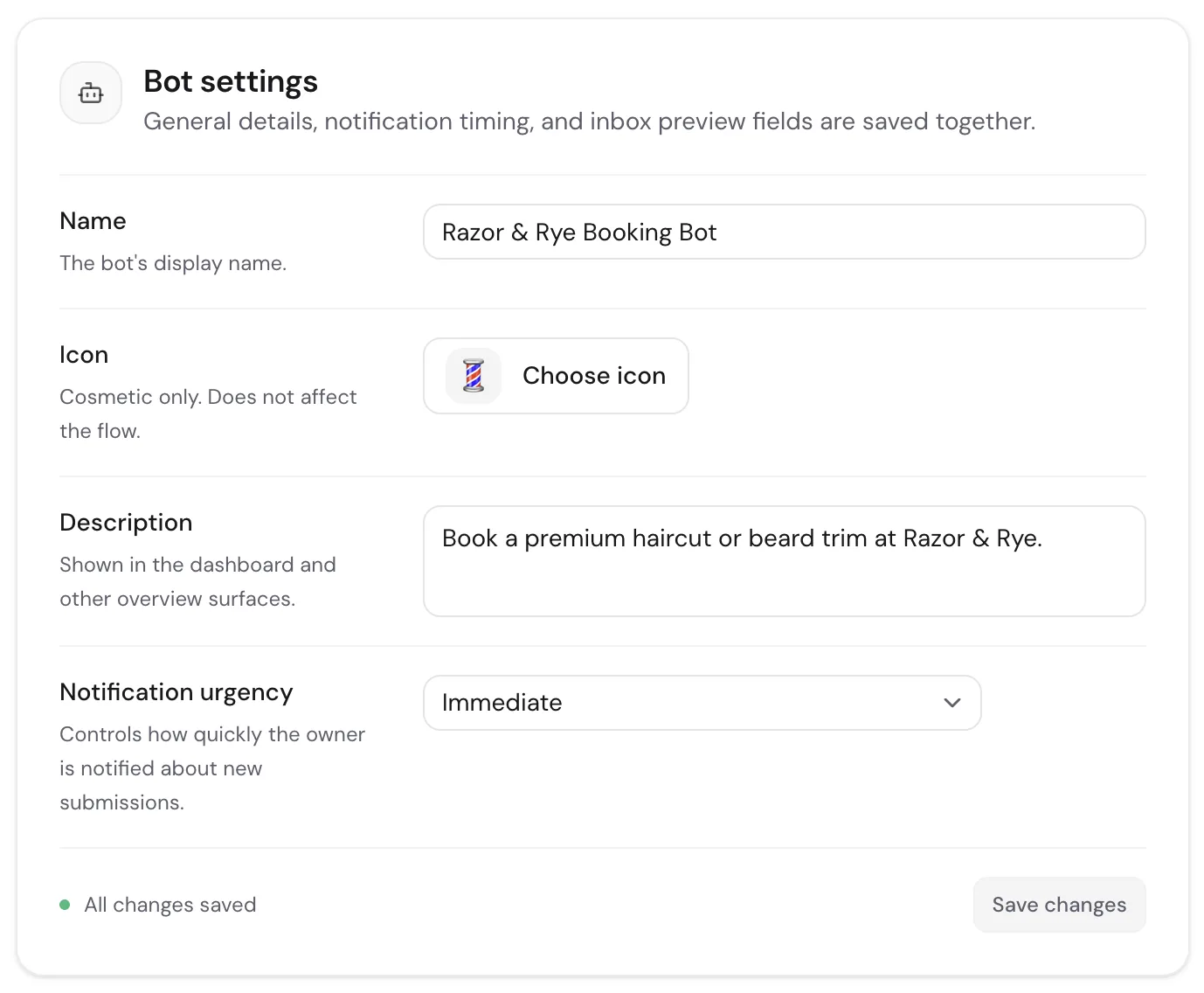
Not every bot deserves a midnight ping. Each bot has a Notification urgency setting under Bots → Settings that controls how quickly new submissions reach you.
- Immediate — every submission notifies you right away. Use it for bookings with short notice windows.
- Business hours — notifications wait for your next open window, based on the business hours in account settings.
- Digest — submissions are batched and delivered together instead of one ping each.
Business hours live in Settings
Business-hours and digest timing follow the weekly hours and time zone you set in Settings → Notifications, so set those before switching a bot away from Immediate.
Related guides
Continue with the next part of the setup once this step is stable.
Triage submissions in the inbox
Read what customers sent, change status, reply or take over the chat, approve or reschedule bookings, and archive — keep follow-up moving without getting buried.
Take over conversations
Step into a live chat when a customer needs a person, reply directly from the inbox, and hand the conversation back to the bot when you are done.
Set up your account and business hours
Update your profile, manage password and linked sign-in providers, and define the business hours your team operates in.