Triage submissions in the inbox
Read what customers sent, change status, reply or take over the chat, approve or reschedule bookings, and archive — keep follow-up moving without getting buried.
Use this guide once a bot is live and submissions start arriving. The inbox is where day-to-day operational work happens.
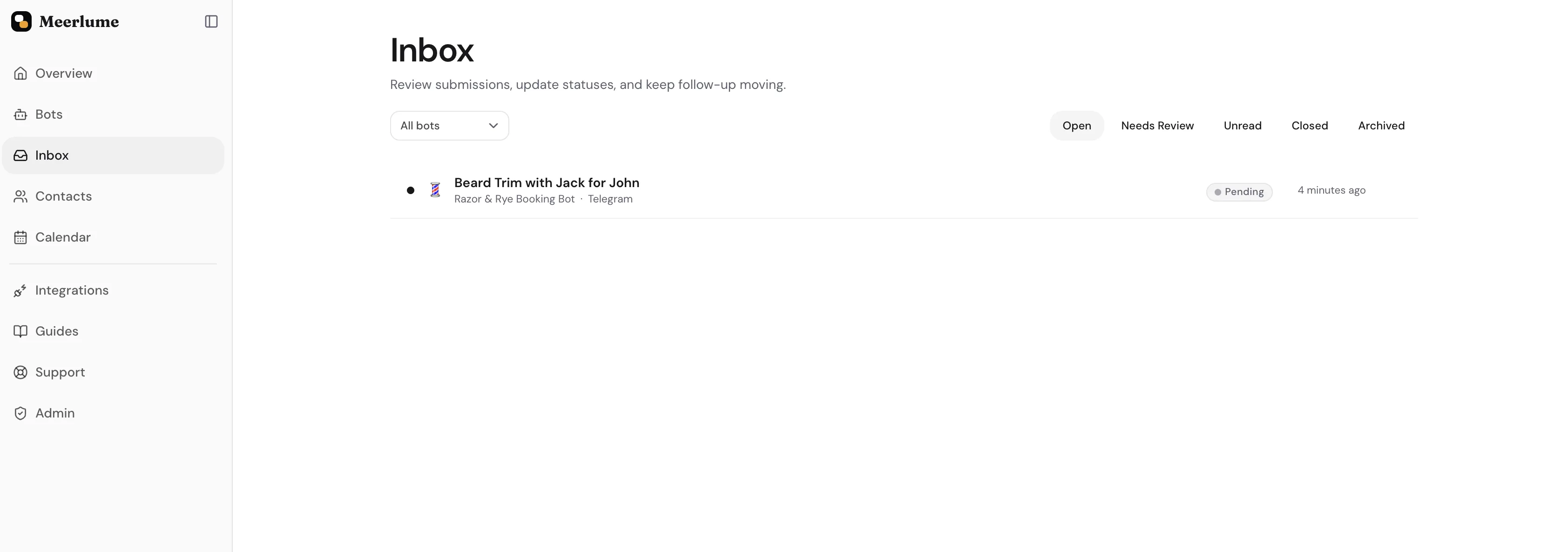
Open InboxFilter the inbox to what you actually need to do
The inbox has five views plus a per-bot filter. Use them together so you are looking at the right slice of work, not every submission ever received.
- Open — the default. Everything still in play. Completed and cancelled submissions are tucked away, and so is anything archived, so this stays focused on live work.
- Needs Review — only submissions whose bot has review enabled and that are still waiting on your decision. Approving or declining one removes it from the queue. Hidden when no bot in your account requires review.
- Unread — anything you have not opened yet, regardless of status.
- Closed — completed and cancelled submissions. Nothing is deleted to declutter Open; it is just filtered here, so the history is always one tab away.
- Archived — submissions you have set aside. Archiving is reversible: open one and Unarchive to send it back to Open.
- The bot filter lets you narrow to a single bot or stay on All bots.
Bookmark the view you live in
View and bot filter are reflected in the URL, so a bookmark like /inbox?tab=needs_review&bot_id=… opens straight into the queue you actually work from.
Open a submission
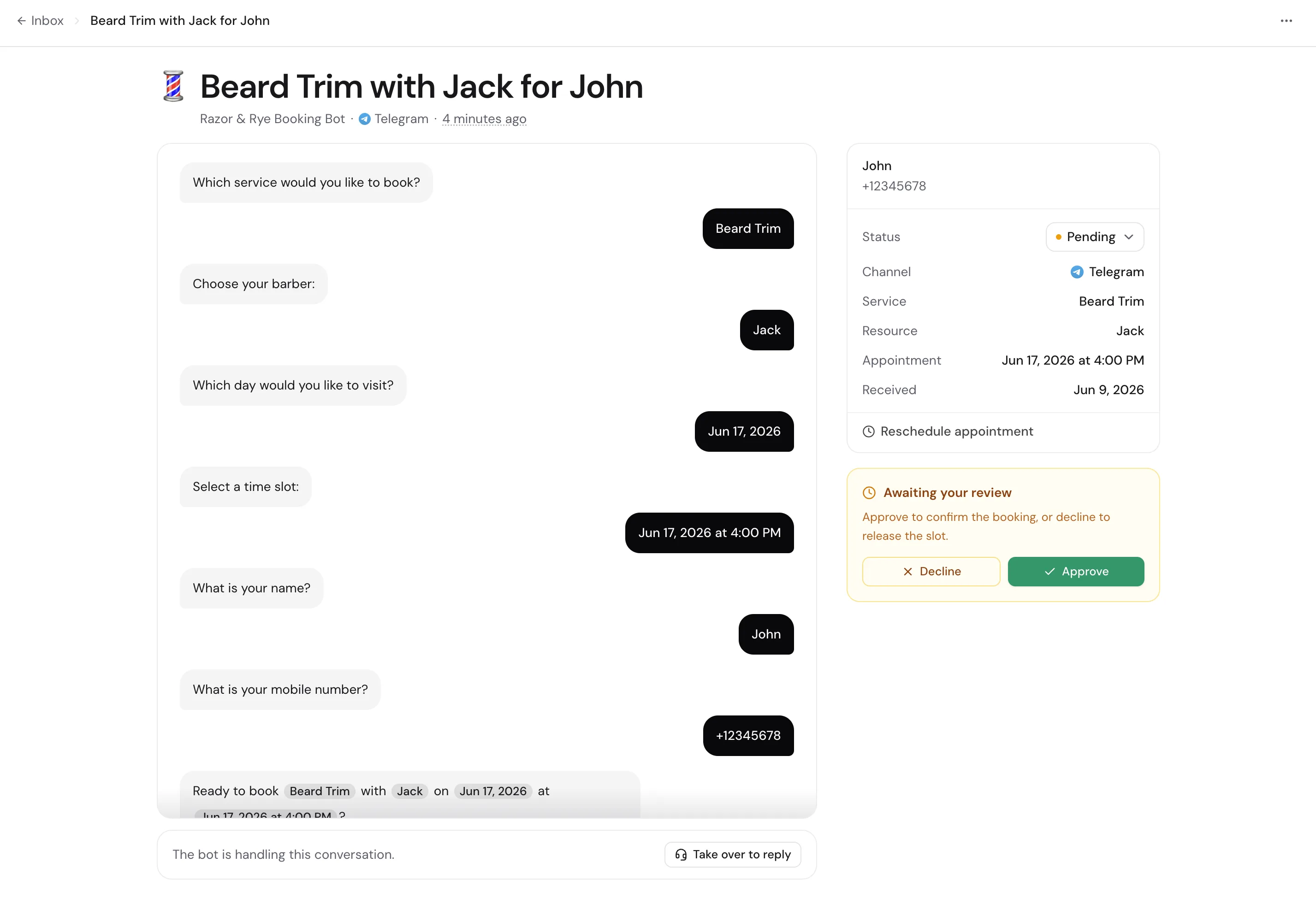
Click any row to open the detail view. The conversation is laid out as a transcript — exactly what the bot asked and what the customer answered — so it reads top to bottom like the chat itself. Opening a submission marks it as read.
- The title is composed for you (for booking bots, something like "Haircut with Jack for Robert"), so the list scans at a glance.
- The Details panel surfaces the facts that matter: the contact, the linked booking and service, and the channel. The contact name links straight to their full history.
- When a booking is linked, you can Reschedule it right from here without leaving the inbox.
Move submissions through your workflow
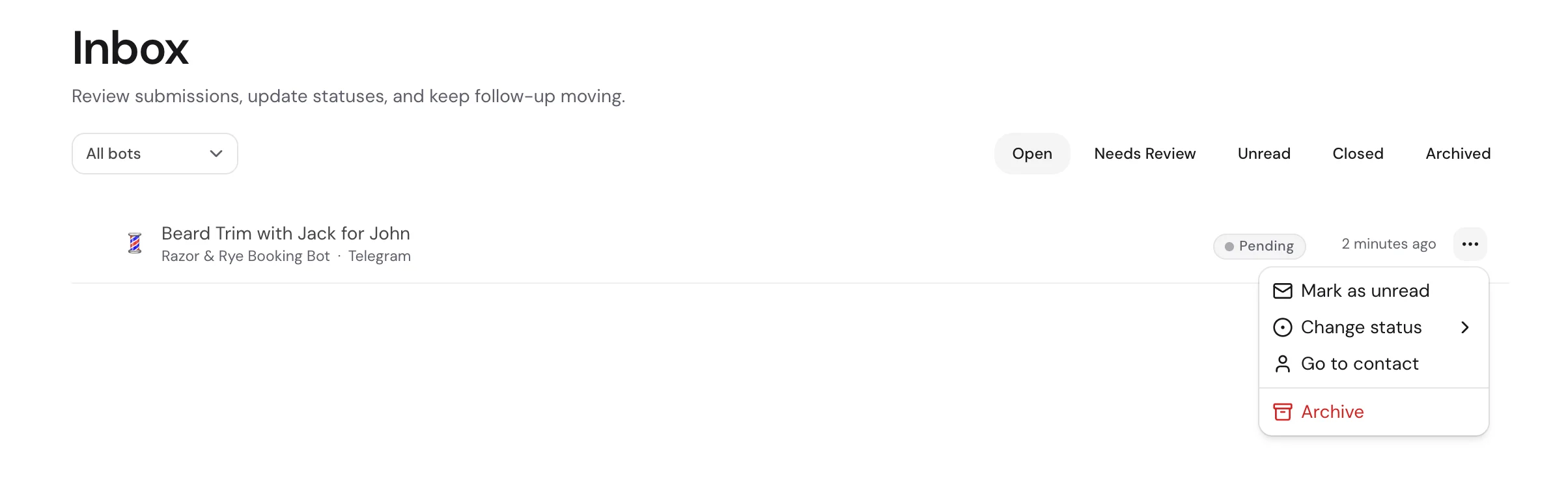
Use the Actions menu in the detail view (or the quick actions on each row) to keep submissions moving.
- Mark as read / unread — toggle the read state without changing status. Useful for flagging items to revisit.
- Change status — pick from the statuses defined for that bot. The current status is highlighted in the menu.
- Go to contact — jump to the person's full history across every submission and booking.
- Archive — set the submission aside. It leaves Open but stays under the Archived tab, where you can Unarchive it back or Delete it permanently.
Statuses come from the bot, not the inbox
The statuses you can pick from are configured per bot in the builder Configure tab. Each carries a kind — pending (needs review), active (in progress), completed, or cancelled — and that kind is what drives the Open/Closed/Needs Review views and keeps the calendar in step.
Working through a long inbox
- The list paginates with a Load more button at the bottom. Older submissions stay loaded as you scroll.
- Completed and cancelled work falls out of Open automatically, so the default view stays focused on what is still live — check Closed when you need the history.
- If you frequently end up in Needs Review, consider tightening the bot's flow so fewer submissions need a human decision in the first place.
Related guides
Continue with the next part of the setup once this step is stable.
Take over conversations
Step into a live chat when a customer needs a person, reply directly from the inbox, and hand the conversation back to the bot when you are done.
Set up owner notifications
Get notified the moment a submission arrives — in the dashboard bell and on Telegram with one-tap Accept and Deny — and tune how urgently each bot pings you.
Manage contacts
See everyone who has reached your bots, search across them, and open a contact for their full history of submissions and bookings.