Manage contacts
See everyone who has reached your bots, search across them, and open a contact for their full history of submissions and bookings.
Use this once submissions are arriving and you want a person-centric view — what one customer has asked for over time, not just a single submission.
Open ContactsBrowse and search
The Contacts page lists everyone who has messaged any of your bots, newest activity first. Each row shows their name, channel, phone, how many submissions they have made, and when they were last active.
- The search box matches name, username, or phone, so you can find a returning customer in a keystroke or two.
- A contact is created automatically the first time someone reaches a bot — there is nothing to import or set up.
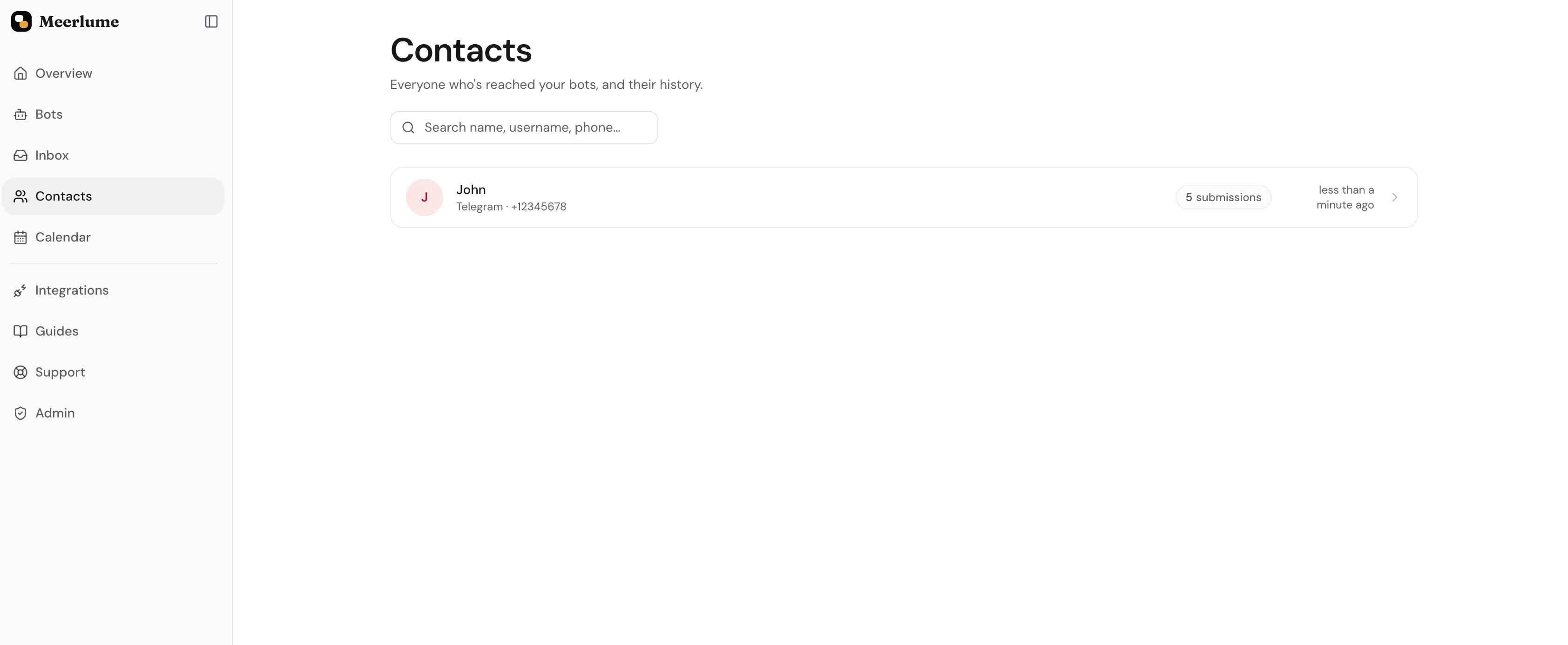
Open a contact for the full history
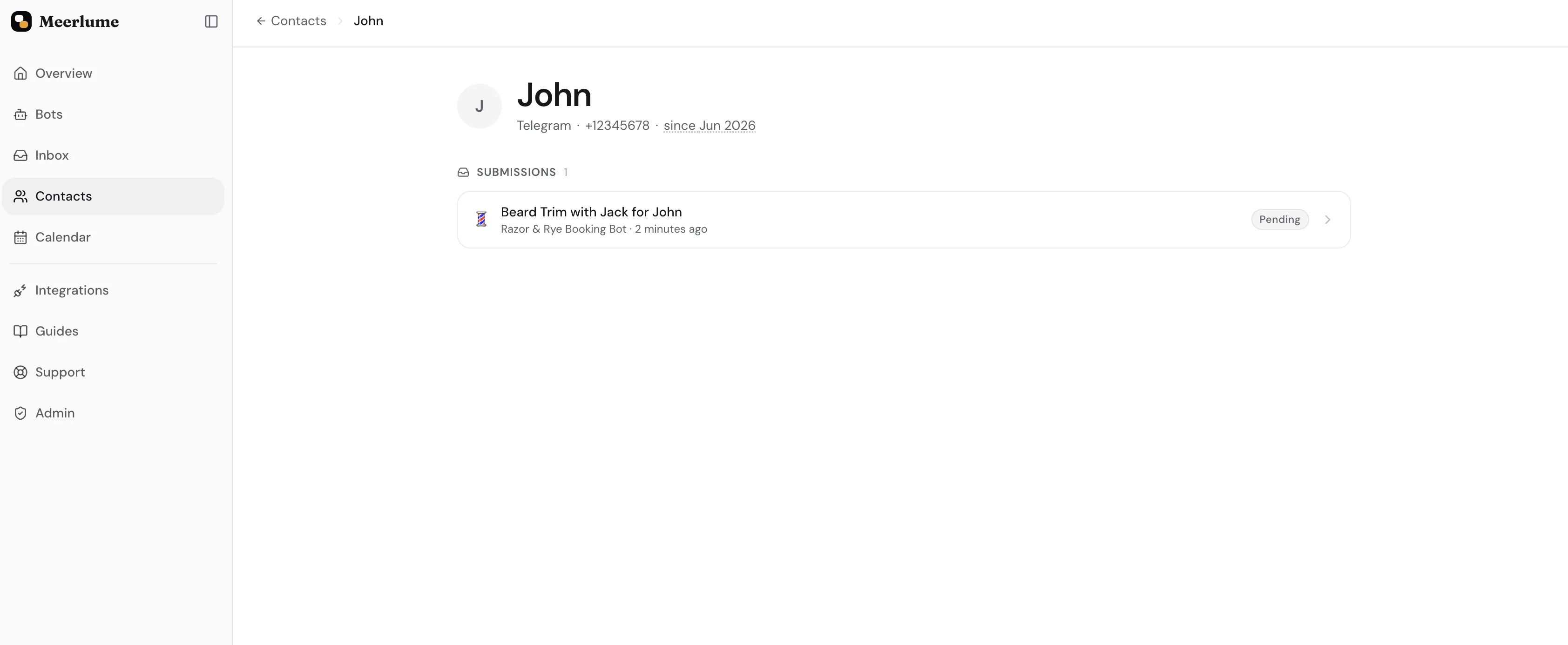
Click a contact to see everything tied to that person in one place — every submission they have made and every booking on the calendar, across all of your bots.
- This is the person-centric counterpart to the inbox: the inbox is organized by submission, Contacts is organized by who sent them.
- You will land here often from elsewhere — the Go to contact action on a submission and the clickable name on a booking both open the contact directly.
Related guides
Continue with the next part of the setup once this step is stable.
Triage submissions in the inbox
Read what customers sent, change status, reply or take over the chat, approve or reschedule bookings, and archive — keep follow-up moving without getting buried.
Set up the calendar
Configure timezone, hours, services, and resources so your bot can offer real bookings instead of just collecting requests.