Connect website chat
Put your bot on your own site as a chat bubble or in the page, and get a chat link you can share anywhere.
Website chat is the one channel with nothing to sign up for, and it is on every plan, Free included. Connecting it gives you two things at once: a chat page hosted by us that anyone can open from a link, and a snippet you paste into your own site.
Connect it
There is no account to create and no verification to wait for.
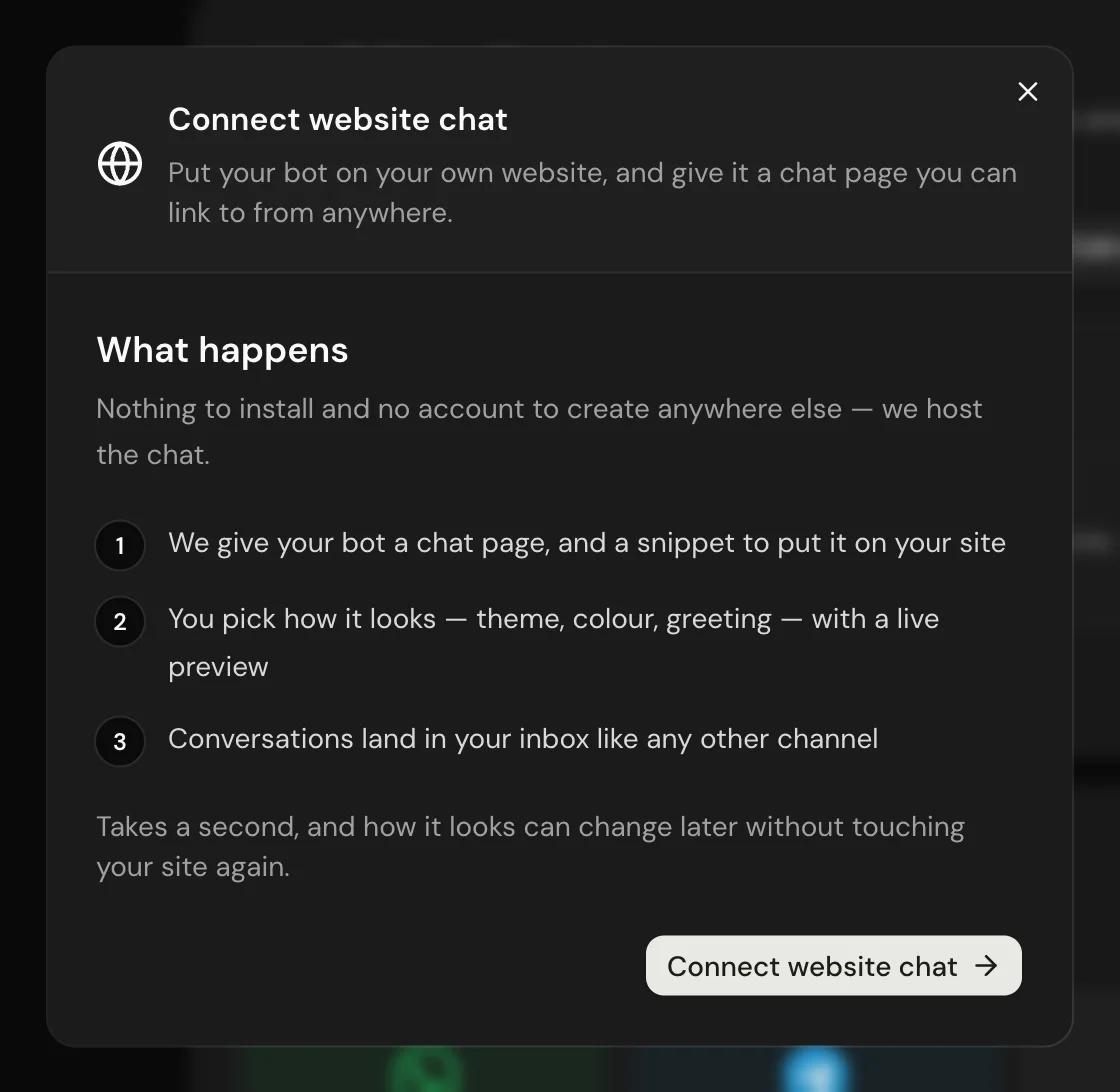
Open your bot's settings, find Website chat under Channels, and press Connect website chat. If the bot is still a draft, connecting publishes it so it can start answering. A Website chat tab appears in the settings rail straight after, and that is where everything below lives.
Conversations end when the tab closes
A web visitor has no account and no inbox, so once they close the tab there is nowhere to send them a booking confirmation or a status update. If your flow does any follow-up, ask for an email. Added through the chat, it is linked to the contact automatically; a question you added by hand is linked under Configure → Contact fields. The settings tab warns you while the flow has none.
Emails to customers on the Free plan
On Free, these emails use Meerlume's standard English wording instead of your own status messages and reminder text, and up to 30 go out a day and 300 a month. Past either limit, those emails are skipped, not queued, until the day (UTC) or your monthly usage period starts again, and we let you know. Starter and above use your own words with no account limit. One address gets at most 5 emails a day from your business on Free, and 10 on paid plans, where appointment reminders are never held back.
Put it on your site
Two ways to embed it. Both use the same one-line snippet with the same script.
Chat bubble
A bubble in the corner that opens the chat when clicked. Nothing loads until a visitor clicks it, so it costs your page almost nothing. This is what most sites want.
In the page
The chat sits wherever you paste it, as part of the page. It grows with the conversation — add data-height="600" to the script tag to pin it to a fixed height instead.
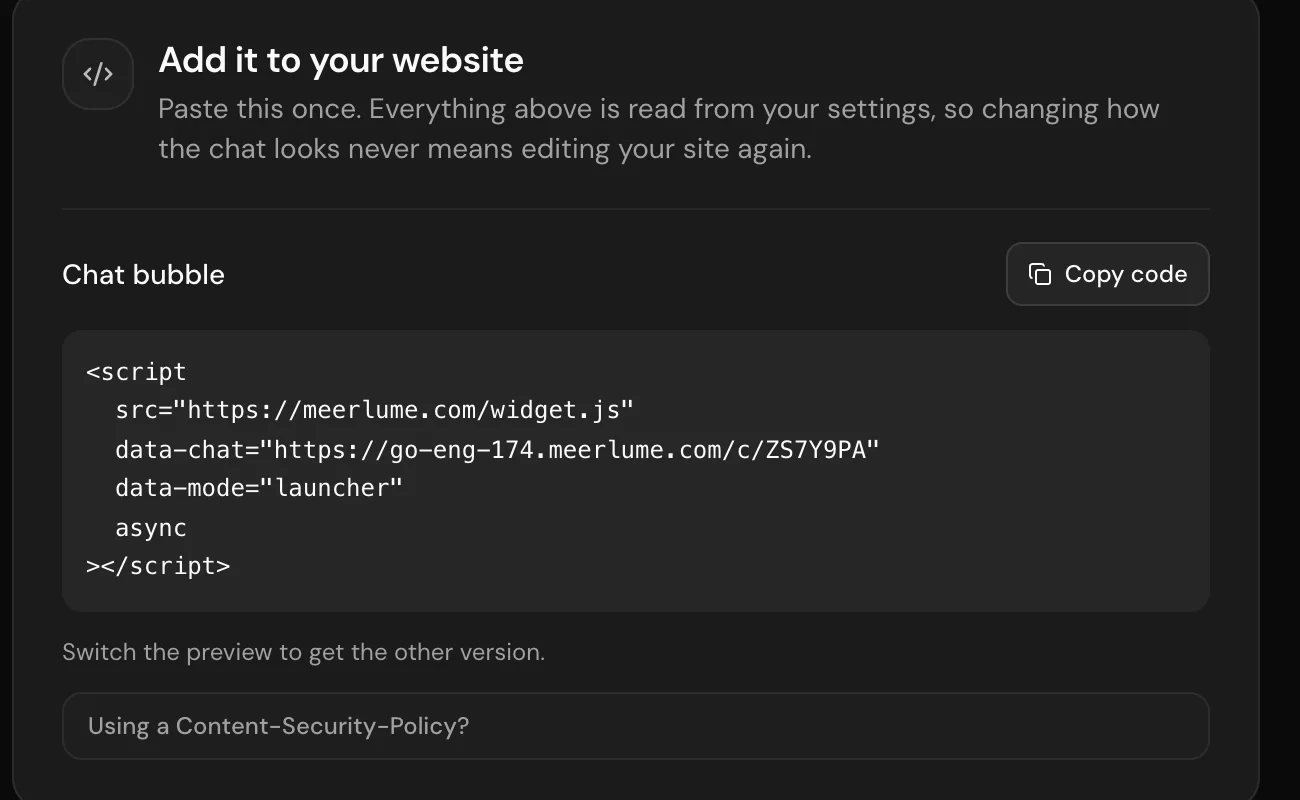
Switch the preview between Bubble and In the page to get the matching snippet, then paste it into your site's HTML before the closing body tag. Any site that lets you add custom HTML will do — WordPress, Squarespace, Webflow, Shopify, a plain HTML file.
On WordPress? Use the plugin
The Meerlume plugin adds the bubble, or the chat inside a page, without editing your theme. You paste your chat code once. See Add the chat to WordPress.
You only paste it once
The snippet carries nothing but your bot's address. Colour, theme, position and greeting are read from your settings when the chat loads, so changing how it looks never means editing your site again.
If your site sends a Content-Security-Policy
Your own policy will block the chat unless you allow three things: the script, the frame it opens, and the request the bubble makes to read your appearance settings. Add script-src https://meerlume.com, frame-src https://go.meerlume.com and connect-src https://go.meerlume.com. Most sites send no CSP at all, in which case there is nothing to change — and if the chat never appears, or appears in the wrong colours, this is the first thing to check.
How it looks
Everything here applies to the bubble on your site, the chat page behind your link, and the QR code alike.
- Theme sets the whole palette together — background, bubbles, text and buttons. Visitor's device is the default and follows whatever light or dark mode your customer already has; the named themes override that choice, which is worth meaning before you pick one.
- Brand colour is optional and overrides just the theme's own colour on the visitor's messages, the send button and the bubble. Leave it alone to use the theme's.
- Bubble position picks which corner of your site the bubble sits in.
- Greeting shows beside the bubble until a visitor dismisses it or opens the chat. Leave it empty for no greeting at all.
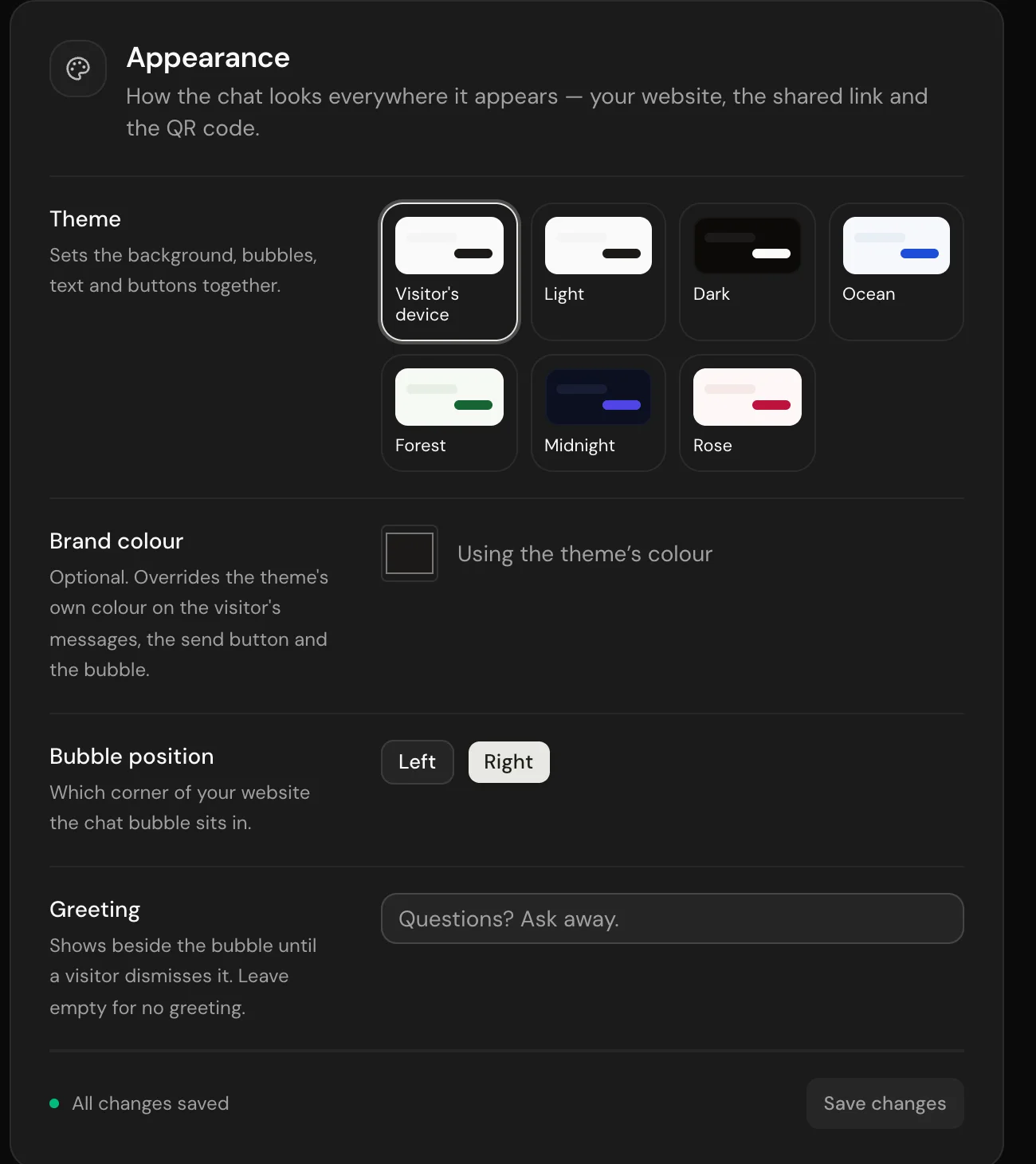
The preview above the settings is the real chat page, not a mock-up, so what you see is what your customers get. Click the bubble in it to open and close the chat the way a visitor would.
Contrast is handled for you
Every theme is checked so text stays legible against its own background, and the text on your brand colour is chosen for you — black or white, whichever is easier to read. That is why the palette is a set of themes rather than a page of colour pickers.
Changes are live on your own site within a few minutes. The preview and the chat link update the moment you save.
The chat link
Connecting also gives you a link to the same chat as a standalone page. It works anywhere a website embed cannot go — an email signature, an Instagram bio, a printed QR code, a message to one customer.
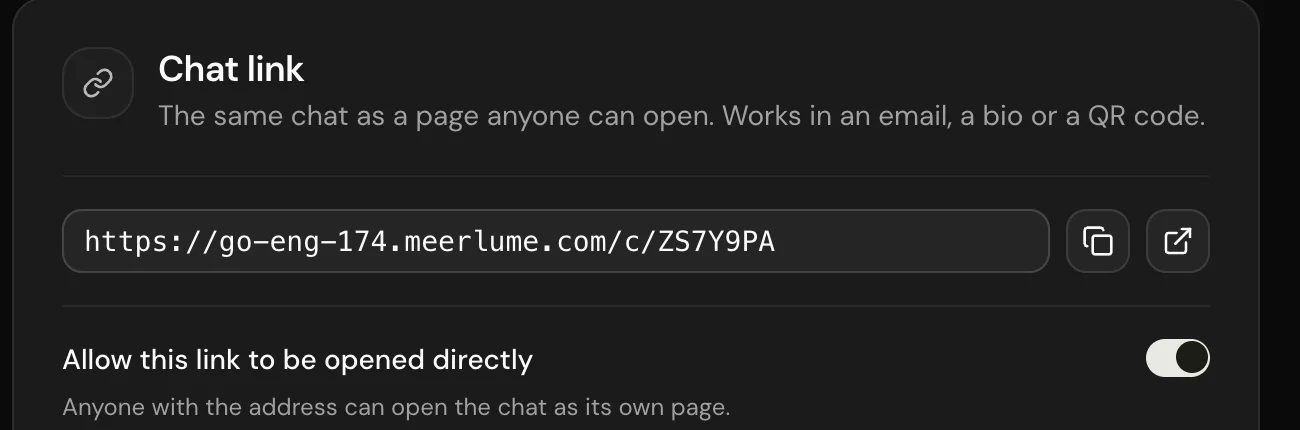
- The page is not indexed by search engines.
- Conversations from it land in your inbox exactly like the embedded ones — there is no separate place to look.
- If you take the bot offline or disconnect the channel, the link says so rather than sitting there silently doing nothing. The bubble on your site stops showing within a few minutes and comes back by itself when the bot is live again. A chat placed inside a page stays where you put it and says the business isn't taking messages right now.
What your customers see
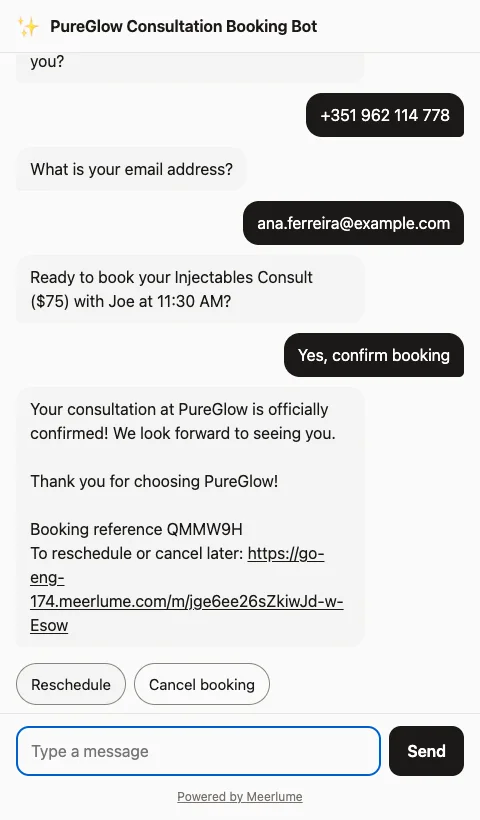
- A short line under the header naming your business as the one receiving their answers, with a link to your privacy policy when you have set one. Set both in the bot's Website chat tab, under Privacy notice, which shows the line as visitors will see it.
- A Powered by Meerlume credit in the footer on the Free plan. Starter and above remove it.
- Nothing to install, no account, and no cookie banner from us. The chat keeps a couple of short-lived keys in the browser — which conversation this is, and whether the greeting has been dismissed — and both are gone when the visitor closes the tab.
Taking over a conversation
You can reply to a web visitor yourself from the inbox while they still have the tab open, the same as on any other channel. See Take over conversations.
Disconnecting
Disconnecting stops both the snippet and the link from working. Your conversations and contacts stay exactly where they are. The link itself belongs to the bot rather than to the channel, so it survives — connect website chat again later and the same link, and any QR code printed from it, starts working again.
Related guides
Continue with the next part of the setup once this step is stable.
Add the chat to WordPress
Put your bot's website chat on a WordPress site with the Meerlume plugin, as a bubble on every page or inside a booking page, without editing your theme.
Connect Telegram
Let Meerlume create your Telegram bot automatically in a couple of taps, or connect a bot you already have.
Triage submissions in the inbox
Read what customers sent, change status, reply or take over the chat, approve or reschedule bookings, and archive — keep follow-up moving without getting buried.