Edit and refine your flow
Use AI-assisted edits for broad changes, then switch to manual flow editing when you need precise control.
Use this guide after the first draft is generated and you want to tighten wording, structure, or business rules.
Open builderUse AI-assisted edits for broad changes
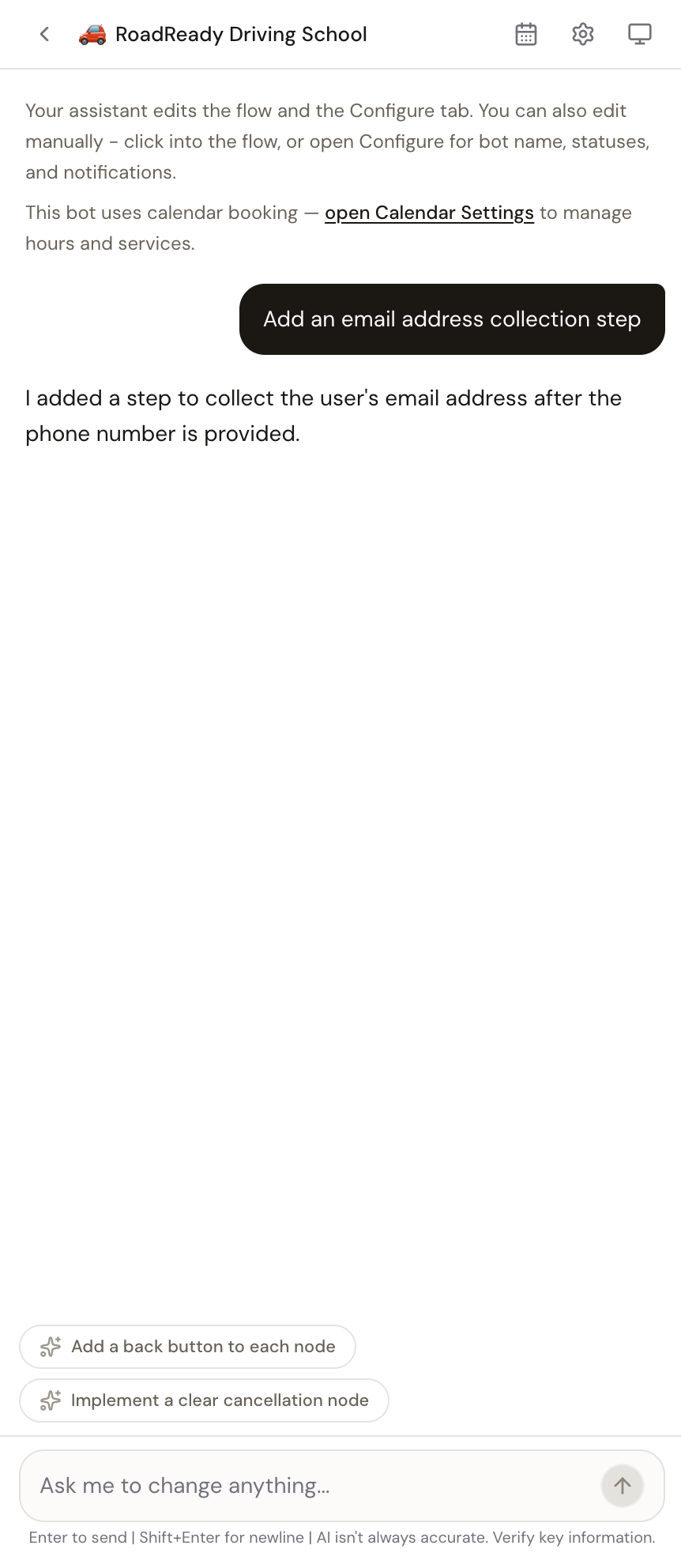
The assistant can rewrite or extend the flow and the Configure tab together. It is useful for changes like adding a cancellation path, collecting a new field, or shifting the tone of the conversation.
- Ask for one concrete change at a time so the summary and diff are easier to verify.
- Use AI edits when the change affects multiple nodes or should also update review metadata.
- Read the summary after each edit and preview the result before moving on.
Use manual edits for precise control
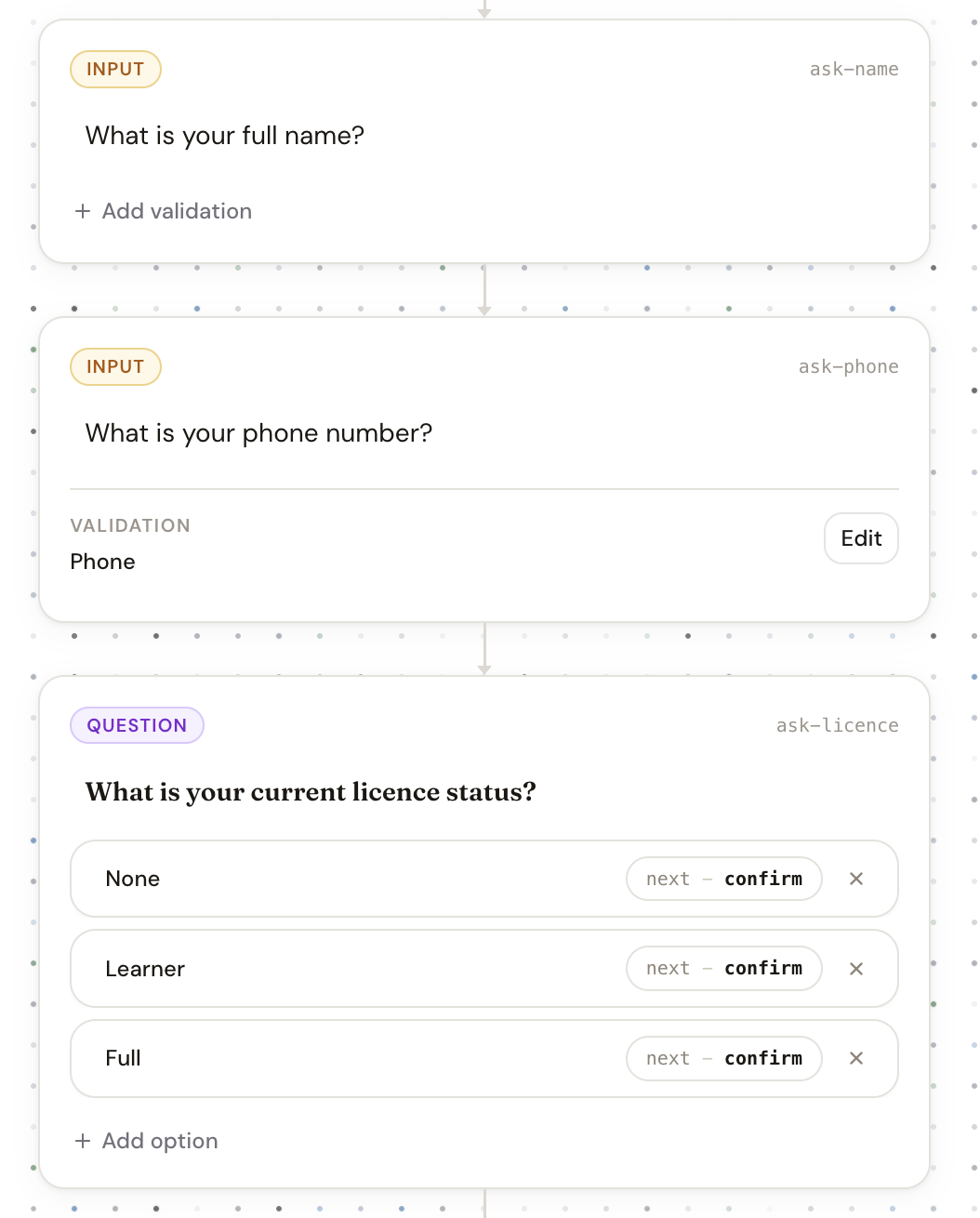
Manual editing is the better choice when you already know the exact wording, branching, or validation you want. Click directly into the flow to edit prompts, messages, options, and node-level structure.
- Use question nodes when the customer should choose from fixed options.
- Use input nodes when the customer should type a response such as a name, phone number, date, or notes.
- Keep option labels short. They render as phone-friendly buttons.
Use Configure for owner-facing behavior
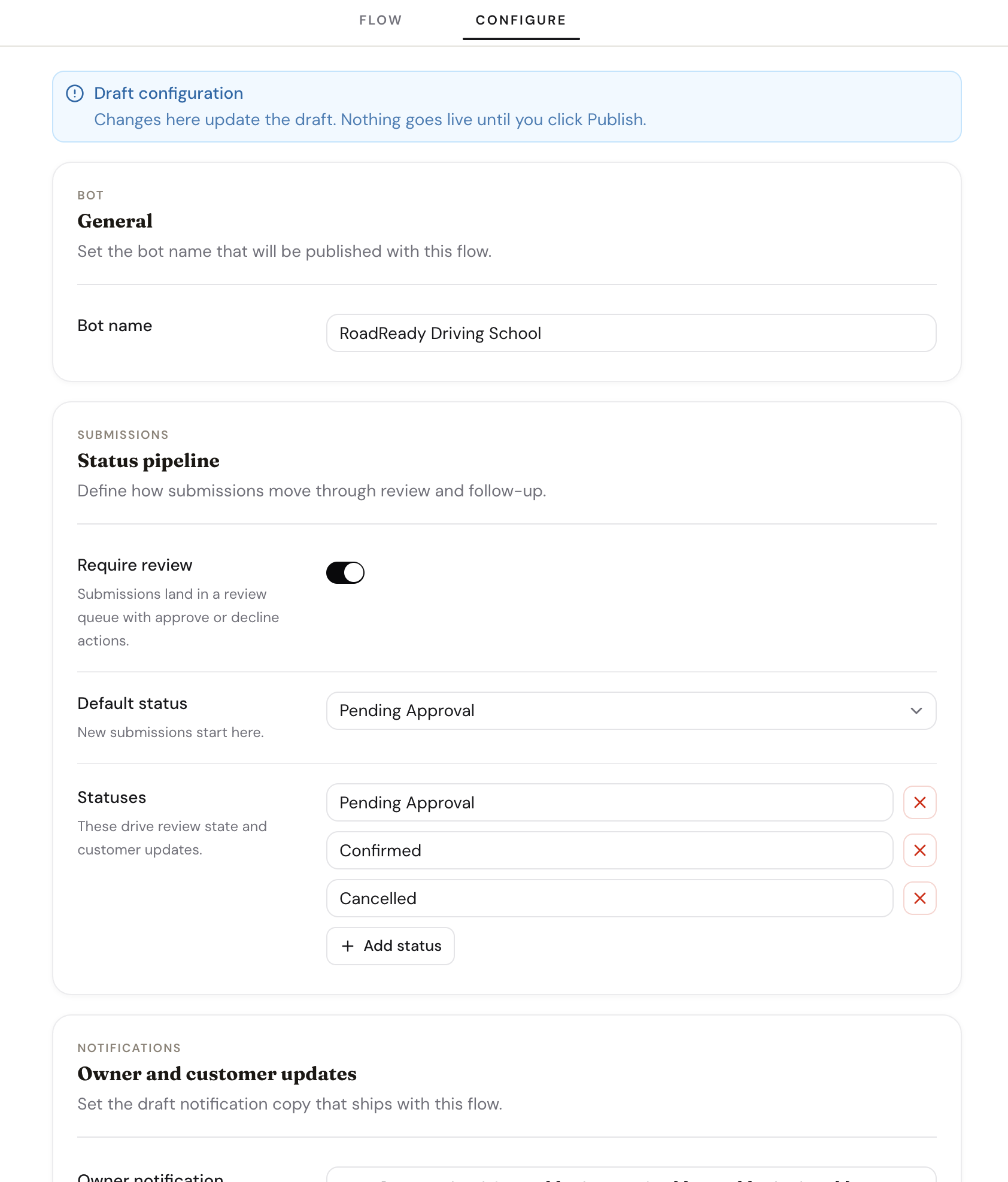
Not every change belongs in the node graph. Use the Configure tab for bot name, review pipeline, owner notification copy, and customer-facing status updates.
Draft safety
Both flow edits and Configure edits stay in draft until you publish. That makes it safe to refine the workflow without affecting live channels immediately.
Related guides
Continue with the next part of the setup once this step is stable.
Create your first bot
Start from a plain-language description or a template, generate a first draft, and understand what guests can do before signing up.
Write better prompts
Describe how the business actually runs so the generated flow is closer to production from the first pass.
Add validations and review rules
Make the bot stricter where format matters and define how submissions move through review, updates, and follow-up.